

Free Video Transcription: A Practical Guide for Creators
Free video transcription is the process of turning spoken audio from a video into searchable text or timed captions without paying a transcription service for each minute. For a podcaster, streamer, YouTube creator, social media manager, agency, or regulated team, the practical question is not simply “Can software recognize speech?” It is which free workflow produces a usable transcript or SRT file, how much review it needs, and whether the footage can remain on a local computer.
What Free Video Transcription actually includes
A transcription workflow has three separate outputs that are often confused. A plain transcript is text without timing. A caption file contains text plus start and end timestamps. A subtitle file may contain translated dialogue or other accessibility information, depending on the format and purpose. Automatic speech recognition, or ASR, is the model-driven step that converts an audio waveform into words; editing and caption formatting happen afterward.
Transcript, captions, and subtitles are different deliverables
- Plain text: useful for episode notes, search, quotes, summaries, and locating topics.
- SRT: a widely used caption format containing numbered entries, time ranges, and displayed text.
- WebVTT: a caption format designed for web video, with cues and timestamps defined by the W3C specification. See the WebVTT specification for the format rules.
- Burned-in captions: text rendered permanently into the video image. Viewers cannot switch these captions off, and the text is no longer an independent caption file.
That distinction changes the job. A legal or medical team may need a private text record with speaker names and review notes. A YouTube creator may need an SRT file that can be uploaded separately. A social media manager may need short, readable caption blocks rendered into vertical clips. One speech-recognition pass can support all three, but the cleanup and delivery steps are different.
What “free” means in this context
A free tool can still consume processor time, disk space, electricity, and editorial labor. The local Whisper software described in its official GitHub repository can be installed and run on your own machine, but it requires a compatible Python environment and FFmpeg. That makes it a no-per-minute-fee option, not a promise of zero cost or instant results.
Free also does not mean automatically publishable. Names, acronyms, numbers, overlapping speech, crosstalk, accents, music, and poor microphones create errors. Treat the first output as a searchable draft unless someone has checked the sections that matter to the audience or business.
Why a transcript matters for repurposing video
Transcription is valuable because it exposes the content layer beneath a long video. A two-hour podcast is difficult to scan by dragging a timeline. A transcript lets an editor search for “pricing,” “the first mistake,” or a guest’s name, then jump to the associated time range. That is a discovery mechanism, not merely an accessibility feature.
Use cases by production job
- Podcast repurposing: search a full episode for claims, stories, disagreements, or concise explanations before selecting short clips.
- VOD clipping: locate reactions, decisions, or instructional moments without watching every quiet stretch at normal speed.
- YouTube publishing: prepare captions, descriptions, chapters, pinned-comment quotes, and community-post ideas from the same source text.
- Agency production: give an editor a searchable client asset while keeping the original footage on an approved workstation.
- Business, legal, or medical review: create a first-pass record for human verification, while avoiding the assumption that automated text is an authoritative record.
The important efficiency comes from reducing candidate discovery time. A transcript can tell an editor where a topic appears; it does not decide whether that moment has visual context, a clean ending, permission to publish, or enough energy for a short-form edit. Those remain editorial decisions.
Transcript quality has more than one dimension
Word accuracy is only one measure. A useful caption file also needs sensible segmentation, timestamps that align with speech, readable line lengths, and consistent treatment of names. A transcript with 95 percent recognizable words can still be awkward if every caption stays on screen too long or splits a phrase in the middle.
For an illustrative review policy, a social team might fully check every selected clip and sample the rest of a long episode for names, numbers, and technical terms. That is a starting policy, not a universal benchmark. A medical, legal, or contractual workflow should set its own review standard with the relevant subject-matter owner.
How to create a free transcript with Whisper
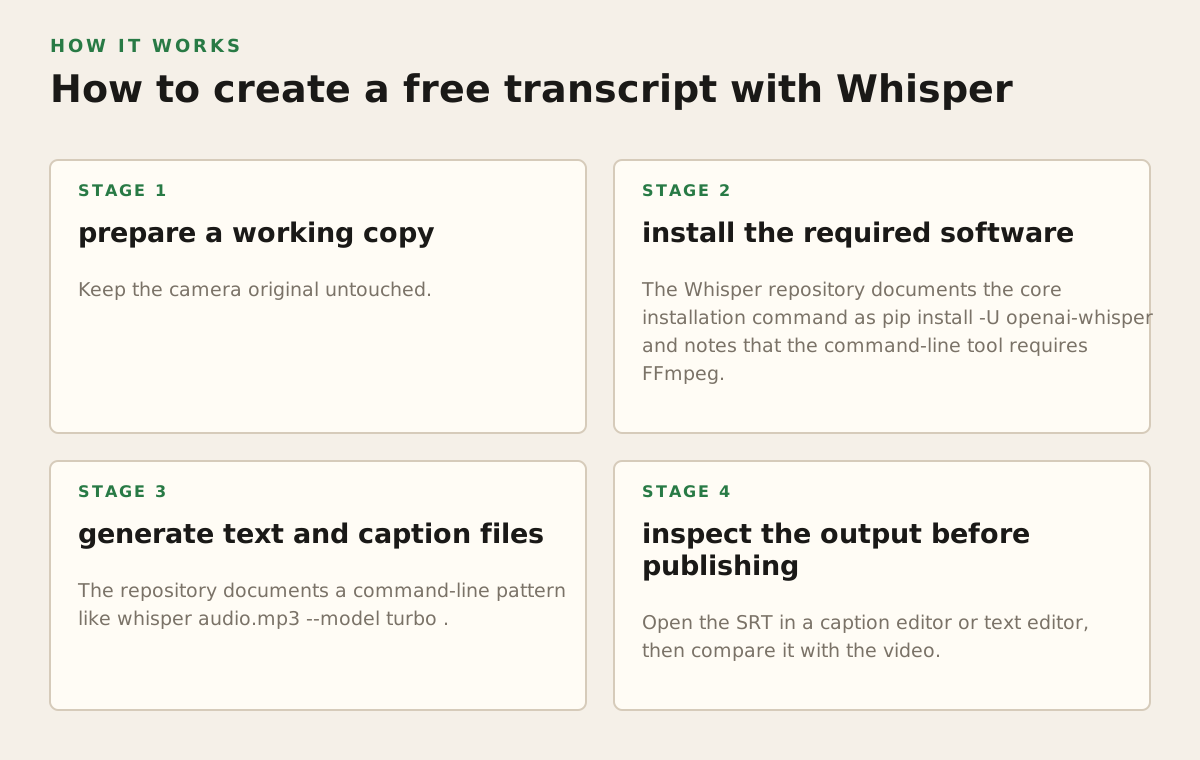
For a concrete no-per-minute-fee route, use Whisper locally. The official repository documents installation, model choices, command-line usage, and the requirement for FFmpeg. It is a practical option when a Windows creator or agency is comfortable installing software and wants the source video to stay on the workstation.
Step 1: prepare a working copy
Keep the camera original untouched. Make a working copy with a clear filename such as client-podcast-episode-12.mp4. If the file contains sensitive material, store the working copy in the approved local project folder and avoid placing it in an automatically synchronized folder unless that is permitted by your organization.
Check the basics before starting:
- Can the file play from beginning to end?
- Is the dialogue audible above music, game audio, or room noise?
- Do you know the primary spoken language?
- Is there enough free disk space for the model, temporary files, and outputs?
- Are you transcribing the entire file or only a relevant export?
For a long recording, exporting only the needed section can reduce processing time and review effort. Do not cut away a few seconds of context merely to make a clip appear cleaner; preserve enough lead-in to judge what the speaker means.
Step 2: install the required software
The Whisper repository documents the core installation command as pip install -U openai-whisper and notes that the command-line tool requires FFmpeg. FFmpeg’s official documentation describes it as a command-line framework for handling multimedia, including reading and converting media files; its documentation is available at ffmpeg.org/ffmpeg.html.
On a Windows machine, a typical setup is:
- Install a current Python version appropriate for your environment.
- Open PowerShell or Command Prompt.
- Run
pip install -U openai-whisper. - Install FFmpeg using a method approved for the computer, then confirm that
ffmpeg -versionworks in the terminal. - Keep the video and output folder in a path without unusual permissions or excessive nesting.
Installation behavior can vary with Python versions, graphics drivers, and machine policies. If a corporate or client machine cannot install packages, do not bypass its controls. Use an approved workstation or ask an administrator to create a documented environment.
Step 3: generate text and caption files
The repository documents a command-line pattern like whisper audio.mp3 --model turbo. For a video file, a creator can adapt the same pattern and request a specific language and output format. For example:
whisper "episode-12.mp4" --model turbo --language en --output_format srt --output_dir "transcript-output"This requests an English SRT output in a chosen folder. The exact model name and supported options should be checked against the current Whisper documentation before production use, because software commands can change. If you need a reading copy as well, run a separate export or use the formats documented by the tool rather than assuming an SRT is suitable for every purpose.
For an illustrative batch workflow, a social manager might process three approved episode files overnight, then review only the timestamped outputs during the next work block. That is a scheduling example, not a guaranteed processing time. The machine, model, duration, storage speed, and available hardware all affect the result.
Step 4: inspect the output before publishing
Open the SRT in a caption editor or text editor, then compare it with the video. Search first for the terms most likely to be wrong:
- Guest and customer names
- Product names and URLs
- Numbers, dates, percentages, and prices
- Industry acronyms and uncommon nouns
- Words near laughter, music, applause, or overlapping speakers
Correct spelling and timing in the caption file, then watch the selected clip with captions enabled. A transcript can be textually correct but still create a bad viewing experience if a caption appears before the speaker says the line, covers a face after reframing, or breaks a sentence into confusing fragments.
Where automatic transcription breaks
Speech recognition is probabilistic. It predicts words from sound and context; it does not understand your publication policy, verify a factual claim, or know that a guest’s surname is spelled differently from the common word it resembles. The highest-risk errors usually cluster around predictable conditions rather than appearing evenly across the whole file.
Audio conditions that reduce reliability
- Overlapping speakers: two voices at once can produce merged or missing words.
- Background audio: music, game sound, applause, and traffic compete with dialogue.
- Distance from the microphone: room reflections and low volume reduce the useful speech signal.
- Fast delivery: dense explanations create more difficult boundaries between words and caption cues.
- Unusual vocabulary: names, code, medical terms, and product labels may be rendered as familiar-sounding alternatives.
- Language switching: a model configured for one language may mishandle another language or mixed speech.
Do not solve every problem by blindly changing models. First determine whether the source audio is understandable to a human. If it is not, noise reduction, a cleaner mix, or a better isolated audio track may help more than another transcription pass. Keep the original audio so any restoration remains reversible.
Accuracy is not the same as caption usability
Long paragraphs are hard to read on a phone even when every word is correct. Caption editing should preserve meaning while creating short visual units that follow speech naturally. Avoid splitting a person’s name from the verb that identifies what they did, and avoid placing a punchline in a separate cue that arrives after the moment has passed.
When speakers overlap, use a speaker label only if it improves comprehension and your delivery format supports it. Otherwise, mark uncertainty in the review copy instead of inventing dialogue. For sensitive work, keep a change log for corrections that alter a name, figure, quote, or substantive meaning.
What the transcript cannot prove
A transcript does not prove that a statement is true, that a quotation is complete, or that a speaker intended a particular meaning. It also cannot show visual context such as a chart, demonstration, facial reaction, on-screen text, or a gesture. For legal, medical, or high-stakes business material, use automated output as an aid to review rather than as the sole record.
A practical escalation rule is to route a section to a human reviewer when it contains one or more of the following:
- A precise number, dosage, date, legal term, or financial claim
- A name that will appear in a title, thumbnail, or public caption
- Multiple speakers or unclear attribution
- A statement that could materially affect a client, patient, customer, or employee
- A clip whose meaning depends on what appears on screen rather than what is spoken
How practitioners turn transcripts into publishable clips
The best workflow treats transcription as an index for editorial work, not as the finished video. Once the text exists, combine keyword search, timestamps, visual review, rights checks, and caption design. This is where a local transcript becomes useful to a larger repurposing system.
Podcast and interview workflow
Start with a full transcript and mark passages that contain a complete idea. A strong candidate often has a clear setup, a specific insight, and an ending that does not require five minutes of prior context. Then watch the surrounding video before cutting. The transcript may identify the sentence, but the video determines whether the guest is framed well, whether the host’s question is needed, and whether a reaction makes the moment stronger.
For each candidate, record:
- Source start and end time
- Core idea in one sentence
- Required context from the preceding exchange
- Potential title or opening text
- Names, claims, or numbers needing verification
- Whether the crop will work in a vertical frame
That small log prevents a common failure: generating many clips from an automatically selected sentence, then discovering during final review that the sentence depends on a visual prop or an earlier qualification.
Streamer and VOD workflow
For a stream, search terms can surface reactions, explanations, and turning points, but silence and nonverbal moments matter too. A clutch play, visual bug, or audience reaction may have little dialogue. Use the transcript to narrow the search, then pair it with timeline markers, chat records, or the video itself.
When converting a VOD into short-form content, preserve enough audio around the event to make the reaction intelligible. Automatic captions should support the moment rather than obscure gameplay or cover the speaker’s face after reframing. If the clip depends on game audio, check the mix independently from the speech transcript.
High-volume social and agency workflow
At scale, separate the pipeline into repeatable states: source received, transcript generated, transcript reviewed, clip selected, captions styled, client approved, and published. This makes failures visible. A missing transcript is an operational problem; an unreviewed client name is a quality-control problem; a caption covering a key product detail is a design problem.
Illustrative batch example:
- 3 source videos: create one transcript and one caption-file folder per source.
- 12 candidate moments: record source timecodes and review status in a spreadsheet or project board.
- 6 approved clips: check each captioned export on a phone-sized preview before scheduling.
- 2 sensitive segments: require named client or subject-matter approval before public release.
These numbers are an example operating pattern, not a claim about the right batch size. The useful principle is traceability: every short clip should be connected to a source file, a time range, a reviewed transcript, and an approval decision.
Choosing local processing versus a hosted service
Local processing is attractive when footage includes unreleased products, private conversations, customer information, or client material governed by internal handling rules. The trade-off is that your team owns installation, updates, hardware capacity, troubleshooting, backups, and review. A hosted service may reduce setup work, but its current data handling, retention, account controls, and pricing must be checked directly before use.
For teams exploring local AI video editing, transcription is only one component of a local workflow. Clip selection, automatic captions, reframing, batch processing, and optional YouTube publishing address the later stages of turning long-form footage into vertical clips; do not assume that a clipper’s transcription feature makes every transcript error-free or every workflow compliant.
A useful decision table looks like this:
| Priority | Starting choice | Question to resolve |
|---|---|---|
| No per-minute transcription fee | Run Whisper locally | Can the team maintain the software environment? |
| Minimal setup | Use an approved hosted tool | What are the current privacy, retention, and pricing terms? |
| High-stakes accuracy | Automated first pass plus human review | Who signs off names, numbers, and substantive claims? |
| Fast short-form production | Transcript plus clip editor | Can the output preserve timing, context, and readable captions? |
Upload and delivery checks
If you are delivering captions to YouTube, keep the caption file separate until the final review. YouTube’s official help explains how creators can add caption files, edit timing and text, and review captions in YouTube Studio; see YouTube’s caption guidance. The exact interface can change, so confirm the current upload steps in the account where the video will be published.
For web projects, validate the file format required by the player and inspect cue timing in the actual playback environment. A valid-looking file can still display poorly if the player expects a different format or if captions overlap. For short-form exports with burned-in text, review the rendered video separately because a corrected SRT will not repair text that has already been embedded into the pixels.
Recommendation: use the cheapest workflow that meets the risk
For podcasters, streamers, and YouTube creators who can install software, a sensible starting path in 2026 is: keep a working copy locally, generate a first-pass transcript with Whisper, export SRT for caption work, search the text for candidate moments, and manually review every selected clip. This directly addresses the free-transcription need without pretending that “free” removes hardware or editorial costs.
For agencies and sensitive teams, add a documented local-storage policy, a human reviewer for names and consequential claims, and an approval step before publishing. If installation or maintenance is the bottleneck, evaluate an approved hosted option separately rather than choosing one solely because its landing page says “free.”
Once the transcript has done its discovery job, a local clipper can handle the next production decisions. ClipForge runs on Windows, analyzes long-form footage locally, identifies strong moments, and supports automatic captions, reframing, batch processing, and optional YouTube publishing without uploading video files to the cloud. See how it fits into a broader OpusClip alternative evaluation, then review the current product details before adopting it for a specific team.
For a practical next step, generate one local SRT from a representative episode, audit names and timestamps, and use that file to produce a single reviewed vertical clip. That small trial reveals whether the real constraint is transcription quality, caption editing, clip selection, or approval, not merely whether the software can produce words.
Authored with NotFair SEO