
Automatic Caption Workflows for Better Short-Form Video
An automatic caption workflow converts spoken audio into timed on-screen text, then turns that transcript into a usable editing layer for short-form video. For podcasters, streamers, YouTube creators, agencies, and teams handling sensitive footage, the important question is not whether software can generate words. It is whether those words are synchronized, readable, editable, and reliable enough to publish without creating a new review bottleneck.
That distinction matters because captions perform several jobs at once. They communicate dialogue when sound is muted, expose the strongest sentence in a clip, support accessibility, and give an editor searchable text for finding moments in a long recording. They also introduce failure points: names can be misspelled, speakers can be confused, technical terms can be mangled, and animated text can become unreadable after vertical reframing.
This guide treats captioning as a production system rather than a decorative effect. It explains what the technology produces, how a local workflow fits into clipping, where transcription breaks, and which review decisions should remain with a human.
What an Automatic Caption actually produces
At its simplest, captioning software receives an audio signal and returns a sequence of words with timing information. The output is not merely a paragraph. It is a time-aligned record: “this text belongs between these two points in the video.” That timing allows an editor to display, hide, split, style, and reposition captions as the speaker continues.
Transcript, captions, and subtitles are different layers
A transcript is usually a readable text record without precise display instructions. Captions add synchronization and may include non-speech information such as a door closing, music, or a second speaker. Subtitles generally prioritize dialogue translation or comprehension and may not describe other meaningful audio. In everyday creator software, the terms overlap, but the production decisions do not.
For a vertical podcast clip, the useful output often includes:
- Words: the recognized speech, including punctuation or line breaks.
- Timecodes: the start and end of each caption segment.
- Speaker structure: an indication of who is talking, when the system can infer it.
- Display rules: maximum lines, character grouping, and placement within the frame.
- Style data: font, color, emphasis, animation, and safe-area positioning.
A caption file can be exchanged independently of the video. WebVTT, for example, defines a text format for timed tracks used with web video, including cues and timing syntax; the W3C WebVTT specification documents those rules. That separation is useful when a social media manager needs to revise text without exporting the entire video again.
Burned-in captions versus caption tracks
Burned-in captions are rendered directly into the pixels of an exported video. They travel with the file and appear consistently on platforms that do not preserve a separate text track. The trade-off is permanence: after export, fixing a misspelled name normally requires editing and rendering the video again.
A caption track remains separate from the video. This can support accessibility controls, language variants, or later editing where the publishing platform accepts the format. YouTube’s official documentation describes captions as timed text associated with a video and documents supported caption workflows through its Captions resource. Platform support varies, so teams should confirm the destination’s current upload and display behavior rather than assume one file works everywhere.
For most short vertical clips, burned-in text is a practical default because it remains visible in feeds and on muted autoplay. It should not be treated as a substitute for an accessible caption track when the channel, audience, or legal requirements call for one.
Why caption quality changes the value of a clip
Captions affect more than comprehension. They influence whether a viewer can identify the premise quickly, whether a clip remains understandable in a noisy environment, and whether an editor can make a defensible selection from a two-hour recording. The strongest benefit is not “more text on screen.” It is a shorter path from raw speech to a coherent visual argument.
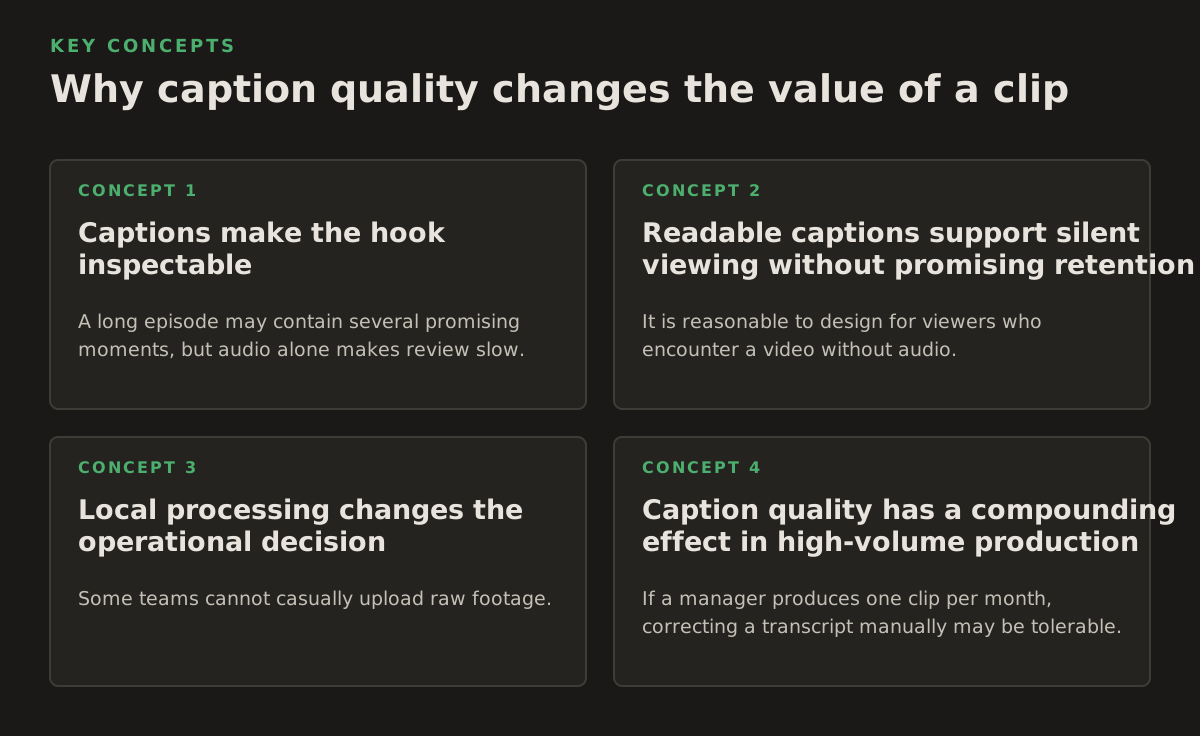
Captions make the hook inspectable
A long episode may contain several promising moments, but audio alone makes review slow. A searchable transcript lets an editor locate phrases such as “the mistake was,” “we changed,” or “here is the actual cost,” then inspect the surrounding video. This is especially useful for podcasters and streamers whose best moments may be distributed across an otherwise unstructured recording.
Captions also expose whether a proposed clip has enough context. A sentence that sounds compelling in isolation may depend on a pronoun introduced thirty seconds earlier. Reading the neighboring transcript makes that gap obvious before an editor formats the clip for a feed.
Readable captions support silent viewing without promising retention
It is reasonable to design for viewers who encounter a video without audio. It is not reasonable to claim that captions automatically improve every engagement metric. Performance still depends on topic, opening frame, delivery, pacing, audience fit, and distribution. Treat captioning as a comprehension and packaging layer, not a guaranteed growth lever.
For practical review, ask:
- Can a viewer understand the premise from the first one or two caption groups?
- Does the text preserve the speaker’s intended qualification, such as “sometimes” or “in this case”?
- Are captions large enough to survive a phone screen without covering the face?
- Does the visual emphasis point to the actual idea rather than manufacture urgency?
- Would the clip still make sense if the viewer reads slightly faster or slower than the speaker talks?
Local processing changes the operational decision
Some teams cannot casually upload raw footage. An agency may be working with unreleased campaigns, a legal group may be reviewing privileged interviews, and a medical organization may handle material subject to internal privacy rules. A local workflow keeps the source files on the workstation instead of requiring them to be transferred to a remote video-processing service. That does not remove every security responsibility: the computer, backups, exports, access permissions, and publishing accounts still need controls.
ClipForge is designed around this local model. It analyzes long-form footage on a Windows desktop, identifies strong moments, creates vertical clips, generates captions, and supports batch processing without uploading video files to the cloud. Teams evaluating local AI video editing should still document where originals, projects, caption files, and exports are stored.
Caption quality has a compounding effect in high-volume production
If a manager produces one clip per month, correcting a transcript manually may be tolerable. If a team reviews dozens of clips from several recordings, repetitive correction becomes a capacity problem. The value of automation comes from reducing first-pass labor while preserving a clear approval step for errors that can damage meaning or reputation.
Illustrative workload example—not a universal benchmark:
- A three-hour podcast produces 180 minutes of source footage.
- An editor selects 12 candidate moments, each roughly 45 seconds long.
- Only eight candidates survive context, pacing, and rights review.
- Each approved clip needs caption correction, vertical framing, title-safe placement, and export.
- A batch workflow can prepare the repetitive first pass, while the editor spends attention on the eight decisions that affect publication.
How an Automatic Caption workflow works
A dependable system is a chain of transformations. Treating it as one magic button makes failures difficult to diagnose. Treating it as stages lets a team decide where automation is appropriate and where a person must intervene.
1. Audio is prepared for speech recognition
The system extracts or reads the audio stream, then processes it for speech recognition. Background music, applause, crosstalk, microphone distortion, echo, and low volume can reduce recognition quality. Better audio helps, but cleanup can also alter voices or remove meaningful sounds, so aggressive filtering is not automatically superior.
For a podcast, the cleanest microphone may be on a separate channel from the remote guest. For a stream, game audio, alerts, keyboard noise, and chat reactions may occupy the same mix. A caption engine sees the combined signal unless the workflow can select or isolate a better source.
2. Speech is decoded into words and time ranges
The recognition model estimates which words were spoken and when. It does not understand every word with equal confidence. Common vocabulary tends to be easier than product names, usernames, acronyms, code, medication names, legal terms, and rapidly spoken numbers.
At this stage, the output may resemble a transcript with segment-level timing. The editor should be able to correct text without manually rebuilding every cue. A useful interface exposes the relationship between the transcript and the playhead: select a phrase, jump to its moment, edit it, and see the result in the video.
3. Segmentation turns speech into readable units
Raw recognition timing is not automatically good screen typography. A caption may need to break at a pause, clause, or change in speaker. If a sentence is displayed as one long block, it becomes difficult to scan. If it changes every few words, the viewer experiences visual flicker.
Segmentation decisions include:
- Line length: keep lines short enough for a phone screen and wide enough to avoid constant flashing.
- Phrase boundaries: break at natural grammatical or spoken pauses rather than mid-idea.
- Reading duration: avoid showing a dense sentence for too little time.
- Speaker changes: signal a new speaker through timing, labels, or style when confusion is likely.
- Emphasis: highlight a word only when it carries the point, not merely because it is easy to animate.
There is no single universal character limit that suits every language, font, frame size, and delivery speed. A starting policy for a creator team might be two lines maximum with a manual review of dense or fast speech; label that as a production preference, not a platform rule.
4. Captions are composited with vertical reframing
Reframing a 16:9 interview into a 9:16 canvas creates a conflict between the face, the speaker’s gestures, and the caption area. A crop that centers the active speaker may place text over their mouth or cover a guest’s name. Caption placement must therefore be evaluated after reframing, not only in the original landscape composition.
Useful layout checks include:
- Keep text away from faces, lower-third graphics, and important product demonstrations.
- Leave room for platform interface elements near the bottom and sides.
- Use contrast that remains legible over changing backgrounds.
- Preview both a talking-head shot and a visually busy shot before choosing a global style.
- Check the export at phone size rather than relying on a large desktop preview.
ClipForge combines caption generation with reframing and batch processing so a team can prepare multiple vertical candidates from long-form material. The human decision remains important: an automatically centered crop can be technically valid while still making the composition feel inattentive.
5. The final file is exported for a destination
Export is where a correct caption layer can become a poor deliverable. A social clip may need burned-in captions, a separate caption file, a particular aspect ratio, or a platform-specific publishing step. YouTube’s official help explains that automatic captions can be generated by its speech-recognition technology and that creators should review them because errors can occur; see YouTube’s automatic caption guidance.
That warning leads to a practical rule: never equate generated with approved. Keep the source project or a caption-editable version until the final review is complete. If optional YouTube publishing is used from ClipForge, the publishing account and destination should be checked separately from the local video-processing decision.
Where Automatic Captioning breaks
Caption errors are not random annoyances. They cluster around predictable conditions. Knowing the failure modes helps an editor decide whether to repair, regenerate, change the source audio, or reject the clip.
Names, jargon, numbers, and code
Recognition systems may choose a common word that sounds similar to a rare proper noun. “Kubernetes,” a client name, a medication, a stock ticker, or a product model can be rendered incorrectly while the surrounding sentence appears perfect. Numbers are especially dangerous because a small change can reverse meaning: 15 versus 50, “not” versus “now,” or “two-thirds” versus “one-third.”
Build a review list for every project:
- People, companies, products, and place names.
- Technical terms, acronyms, and industry-specific vocabulary.
- Prices, dates, percentages, measurements, and version numbers.
- Negations and qualifiers such as “not,” “rarely,” “may,” and “approximately.”
- Claims that could create legal, medical, financial, or reputational risk.
Crosstalk and speaker changes
Two people talking at once can produce missing words, blended phrases, or captions assigned to the wrong person. A remote interview may contain latency, clipped syllables, and room echo. A streamer may speak over game dialogue or a notification. Cutting around the overlap is often better than attempting to make the caption layer explain an unintelligible mix.
Do not use color alone to communicate speaker identity. Color can help, but contrast, placement, labels, or a clean cut may be needed for viewers with color-vision differences or for footage displayed in poor conditions.
Dialect, code-switching, and multilingual speech
Accents and dialects are not errors, but a recognition model may represent them less accurately than standard broadcast speech. Switching between languages can also produce an incoherent transcript if the workflow assumes one language throughout. Review the original audio rather than “correcting” a valid pronunciation into a different word.
For multilingual content, decide before editing whether the goal is verbatim captions, translated subtitles, or a bilingual display. These are different deliverables with different review requirements. A machine-generated translation should not be treated as publication-ready for sensitive or high-stakes content without qualified human review.
Timing and visual overload
A caption can contain the right words and still fail because it appears too early, lingers after the thought ends, or competes with rapid cuts. Animated word-by-word styles create additional timing decisions. If the footage cuts every fraction of a second, a stable phrase-level caption may be more readable than matching every syllable.
Use a falsifiable quality check: play the clip once with sound muted and once with sound on. On mute, verify that the argument is understandable. With sound on, check that the text follows the speaker without making the viewer choose between reading and watching the important visual action.
Platform and workflow mismatch
A team may approve a caption file that a destination does not accept, or export a video with text placed beneath interface controls. Platform specifications change, and publishing tools expose different caption options. For YouTube API workflows, the official documentation is the appropriate place to verify current caption operations and resource behavior, rather than relying on an old tutorial.
For teams building their own local pipeline, the open-source Whisper project describes a speech-recognition system and its installation and usage considerations in its official GitHub repository. That documentation can help technical teams understand model choices and local execution, but adopting a recognition model does not by itself solve segmentation, styling, reframing, quality assurance, or publishing.
How practitioners should apply captioning in production
The right workflow depends on the job. A podcaster needs fast discovery and faithful context. A streamer needs to isolate speech from chaotic audio. An agency needs repeatability across client projects. A legal or medical team needs a documented review path. The same generated text can be useful in one setting and unacceptable in another.
For podcasters repurposing long episodes
Start with the transcript as a discovery index, not as an automatic list of publishable clips. Search for complete ideas, then include enough setup and payoff to preserve meaning. After choosing a moment, review the words against the audio and verify every name, claim, and number.
A practical sequence is:
- Process the full episode and locate candidate phrases.
- Extend each candidate until the premise and resolution are understandable.
- Remove throat-clearing, repeated starts, and irrelevant host chatter without changing the argument.
- Reframe the speakers for vertical viewing.
- Generate captions, then correct proper nouns and high-risk claims.
- Watch the final clip muted and with audio before scheduling it.
Do not let a transcript’s searchability dictate the editorial hook. A phrase can be easy to find and still lack tension, specificity, or a useful takeaway.
For streamers turning VODs into clips
VOD audio usually needs more interpretation. Game sound, alerts, audience reactions, and multiple microphones can confuse both moment selection and captioning. Use captions to identify spoken reactions and explanations, but inspect the video for the visual event that gives the line its meaning.
Prioritize clips where the viewer can understand the outcome without seeing the entire stream. If context is required, add a brief visual setup or choose a later moment where the payoff is self-contained. Avoid caption styles that cover gameplay information, scoreboards, or chat overlays.
For YouTube creators producing vertical video
Keep a version of the clip that is editable before publication. A creator may later need to change a title-safe position, correct a product name, create a clean version for another channel, or prepare translated text. Batch processing helps with volume, but batch approval should not mean identical placement for every shot.
A starting policy for a small creator team could be to review every caption error that changes meaning, every proper noun, and every frame where text overlaps a face. This is an illustrative policy, not a universal compliance standard. Increase review depth when the topic is instructional, regulated, sponsored, or likely to be quoted out of context.
For agencies and sensitive-footage teams
Write down the data path before selecting a tool. Identify whether source video, audio, transcripts, thumbnails, project files, and exports remain local or travel to an external service. Then set access, retention, backup, and deletion rules that match the client agreement. “Local” describes processing location; it does not automatically prove that a workflow meets a particular legal or contractual requirement.
Use project templates for typography and safe areas, but keep client-specific vocabulary lists and approval notes. A repeatable checklist should cover:
- Who may access original footage and caption exports.
- Which words, names, or claims require client approval.
- Where temporary transcripts are stored and when they are deleted.
- Which person approves the final burned-in text.
- Whether publishing is performed locally, manually, or through an authorized account.
For teams deciding between automation and manual editing
Automation is strongest when the task is repetitive, inspectable, and reversible. Caption first passes meet those conditions. It is weaker when the source is heavily overlapped, the wording is high-stakes, or the final design depends on nuanced editorial judgment.
A sensible decision table looks like this:
| Production condition | Recommended approach | Reason |
|---|---|---|
| Clean single-speaker podcast | Automatic transcription plus focused correction | Most errors can be found through names, numbers, and context review. |
| Streamer VOD with game audio | Automatic first pass plus aggressive visual and audio inspection | Speech may be masked by effects, alerts, or simultaneous dialogue. |
| Legal, medical, or contractual material | Local processing where appropriate plus qualified human approval | Privacy and meaning errors carry consequences beyond cosmetic quality. |
| High-volume social batch | Templates, automated generation, and risk-based sampling | Consistency matters, but identical placement can fail across varied shots. |
| Multilingual campaign | Separate transcription, translation, and language review stages | Translation is not the same task as speech recognition. |
The recommendation for most teams is straightforward: use automatic captions to accelerate discovery and produce a structured first draft, but reserve final approval for a person who can hear the audio, see the frame, and understand the audience’s expectations. Choose a tool that keeps correction close to the timeline, supports the destination format, and makes the data path explicit.
For teams comparing desktop workflows, the OpusClip alternative may be useful when local processing and batch clip creation are more important than sending source footage to a remote editor. ClipForge analyzes footage on Windows, identifies strong moments, creates vertical videos with automatic captions and reframing, supports batch processing, and can optionally publish to YouTube. See what ClipForge offers through ClipForge.
Authored with NotFair SEO